Click here to learn how to change the phpYellow index page.
You may want to change the look and feel of phpYellow Pages. Make a backup copy before working on any file. Here are major Customization topics:
These are some of the files you may change to effect the look and feel you want:
phpYellow Pages is capable of showing any combination of data [database fields] you wish. If the data is contained within the database, then the data may be displayed in a record.
RESULTS_ON_ONE_LINE is useful for displaying a large number of records.
A few features of each record are shown on one line, with a link to
complete record detail.
Complete display only is useful for a smaller total recordset - where the visitor
is not overwhelmed with listings. Example: a small specialized directory. Note that
the Search form is designed to let your visitors choose between Complete and One Line results.
If you do not wish to offer RESULTS_ON_ONE_LINE - you only want to offer Complete detail - then:
showOneRecord.php is just a small file. Open it up, take a look, and you will see the logic of how records are displayed in every user initiated search.
The Lite Edition does not recognize and does not use ranks for listings in searches. Accordingly, one file is used to show results for user initiated searches - oneRecord.php. This file can be modified to suit your taste. Using plain HTML or php you can show data or rearrange the look, or change color or font-size or font-family ... basically any change you want to make to customize how your records look you can make.
It is preferable to make as many changes as possible using an external style sheet. By making changes to the external style sheet you keep your content separate from the formatting (font, color, position and so on...). This in turn allows you to:
The more changes you make to the original php files the more work you are creating for yourself in the long term. Do yourself a favor and keep the content separate from the formatting - by learning how to use cascading style sheets. The Web Developer's Virtual Library has excellent resources for you to learn CSS styles.
phpYellow Pages is compliant with the W3C's HTML 4.0, which since 1997 has been recommending that you keep structure apart from formatting. For example, in a Heading 1 tag colored red, the heading tags will be in the html document, and the color for the heading will be in an external .css file. This makes it easy to make sitewide changes in formatting to every page, but at the cost of a learning curve for .css - well worth it! You may find .css tutorials online and contained within better html editors.
Netscape users will be familiar with display dysfunctionality in Netscape, especially in regard to W3C cascading style sheets. I am happy to report that Netscape 6 (and higher versions) do a tolerable job in supporting Level 1 CSS. Most (if not all) of phpYellow Pages only uses CSS Level 1, and most phpYellow Pages should display tolerably well in Netscape 6 or higher.
How to Optimize for Other Netscape BrowsersThe formatting for phpYellow Pages is driven with external cascading style sheets. There is also browser detection. When a user loads any page a javascript detects their browser and loads a .css file for that specific browser make. To change the look and feel for Netscape simply open netscape.css in any css editor and format this file to suit your tastes. You can have a totally different look and feel for Netscape visitors - and another for Internet Explorer visitors.
You can add more browser types by adding another case statement block and a related css file in the yellow.js script. Based on an analysis of website traffic most surfers use recent browser versions. You can add specific versioning if you want but the traffic that will use it will tend to be negligible ...
One of the ways to customize phpYellow is to make changes to the category values. For example, instead of offering a generic Yellow Page service, you may change all the category values to the type of service you wish to have an online directory for. You may want to build a directory just for Real Estate services in your city, or create a Tourism only directory, or a High Tech services directory for your state, or an Automobile Dealer directory in your country, or ... the potential is limited only by your imagination. To make such a change will dramatically specialize your phpYellow implementation and very possibly enable you to provide a UNIQUE service not offered elsewhere.
Specialized directories can be created by using the categories*.php files as found in the distribution package. To do so, change the filename containing the categories you want to "categories.php".
It's easy to customize the categories of products and services in phpYellow. Open up the file named categories.php in your html editor. Add, edit or remove one or more categories like this:
Replace each select list item with the value and value displayed to the user that you want. For example, within categories.php:
<option value="Air-Conditioning">Air Conditioning</option>
Above you may change the actual value of "Air-Conditioning" to, for example, "Education". Also remember to change the words between the begin and end of the <option> tags to "Education". The value= contains the data which gets posted to the database. The other identical category word is what the user actually sees when they view the drop down list.
Upload the new categories.php file to your web server and that's all you need to do - if these changes are made before you go online with your phpYellow implementation.
In NO CIRCUMSTANCE should you change any php or selected code or variables when making these category option changes. Change the option values only. By making these changes you are merely altering the V A L U E S that get selected by the user and sent or searched from the database. Instead of storing generic Yellow page like values, you are storing specialized values for your particular implementation - for example all services and products relating to "Education", or "Internet Products and Services" - whatever your implementation is. Changing the values makes all the difference - everything else still works exactly the same way - it is the values that make the results different. Any developer can make these value changes by following the steps detailed above.
In Pro version 2.22 and higher you may change the category of a listing using a point and click tool. This tool is called 'Set CKEY Parameters'. The listing expiry date, category, position, payment required and status may be changed. A pop up window reports the result of your selection and automatically closes in POPUPTIMEOUT milliseconds. You may set your own value for POPUPTIMEOUT in the util.php file.
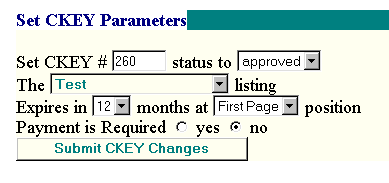
For example, you can change a category submitted by the user for their listing from "Computer Software" to "Internet Products". To do so you need to note the ckey number stamped on the listing (obtained via any search), then use the number in the 'Set CKEY Parameters' admin tool as pictured above.
	This feature lets you quickly identify and customize sub-regions
	within your own country.

	define("SUBJURISDICTION", "world"); /* modify - 'world', 'USACanada', 'USA', 'UK', 'Canada'

	Determines the type of country subregion: open entry text box, a state list,
	the UK county list, Canadian provinces or ... add your own case.

	The result is shown in various forms that use such data. If you _add_ a
	new subjurisdiction please forward the sj*.php code to DreamRiver for
	free inclusion in the next release. To change the existing SUBJURISDICTION
	open util.php and enter your preferred value. Example: 'world', 'USACanada', 'USA', 'UK', 'Canada'
Changing provinces or countries is exactly the same as changing categories. Open up the provinces or countries file, make desired changes, save and upload to your web server.
The bare minimum requirements for any listing is email and password. If you wnat to make MORE data fields required then follow these steps:
To require certain data to be entered by the user:
You can build a link to point toward a specific record. The highlight feature is used to do so. Highlight selects a specific record number using the form:
http://www.yourDomain.com/phpYellow/yellowresult.php?goal=highlight&ckey=1
Change ckey to the value of your record. ckey may be located by completing any search and looking for " On correspondence quote ckey# ". By default this is found in each displayed listing. You may also find it by asking the webmaster. ckey is the unique database key for the category record. For example, when you submit a listing you have a single contact table record number, called customerid. When you submit one or more category records each record has a unique number called ckey. The two tables are joined together as needed using a common id. A special script is programmed to find the ckey and display the related contact and category record on a page all by itself.
You can view the database fields, their datatypes and attributes here:
DOCSinstallNotes.php#createTable
The word "field" means the same as "column".
It's not easy. One must consider the logic of the application in every respect before adding a single field. If a field is added to a table, then the scripts which insert, update, search on, delete or otherwise use the field must also be modified to accept the new field. Then testing takes place. If all is well, the new code is uploaded to the recipient website. The documentation should be updated to reflect the new table structure. You can count on a minimum of USD$100 per extra field added to the phpYellow Pages application if you ask DreamRiver to quote on your changes. The feasibility and desirability of any proposed changes is also considered.
All Pages Copyright©2000,2001,2002 Dreamriver.com. All rights reserved.